
Thread Transfer
How to Detect Budget Waste in Your Meta Ads CSV Exports
The data is in your exports. You just need to know where to look. Here's exactly how to analyze Meta Ads CSVs to find wasted budget.
Thread Transfer
Founder, Meta Ads Audit
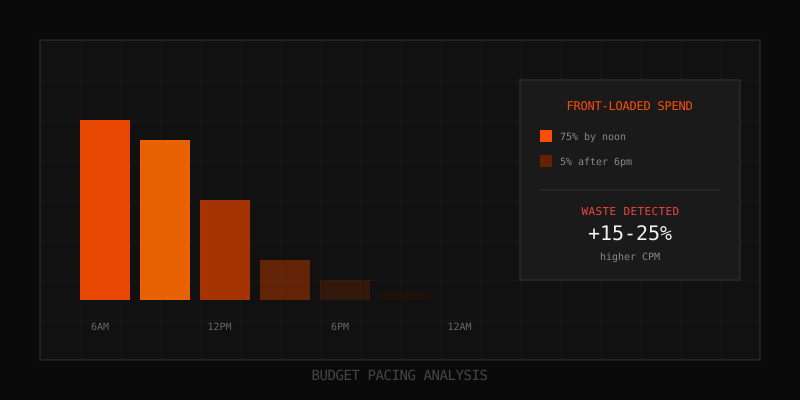
Your Meta Ads CSV exports are a goldmine of waste evidence hiding in plain sight. Every day, advertisers download performance reports, glance at the totals, and miss the patterns that reveal where their budget is actually leaking. The data is there. You just need to know what calculations to run and what thresholds indicate a problem.
This guide teaches you the exact formulas, column combinations, and detection patterns that reveal budget waste in Meta Ads CSV exports. No expensive tools required. Just a spreadsheet and the knowledge of what to look for. By the end, you will be able to audit any account in 30 minutes and identify specific rows where money is being wasted.
Why CSV Analysis Beats the Ads Manager UI
The Ads Manager interface shows you aggregated metrics. It is designed for quick decisions, not forensic analysis. CSV exports give you row-level data that reveals patterns invisible in the UI. Here is what you can do with CSVs that you cannot do easily in Ads Manager:
- Calculate derived metrics: Efficiency ratios, pacing percentages, and variance scores
- Compare across time periods: Hour-by-hour, day-by-day pattern detection
- Filter and sort at scale: Find outliers across hundreds of ad sets instantly
- Create audit trails: Document findings with row numbers and timestamps
- Automate detection: Build formulas that flag problems automatically
Most importantly, CSVs give you evidence. When you tell a client "this ad set is wasting budget," you can point to specific rows with specific numbers. That is the difference between opinion and proof.
Essential Columns for Budget Waste Detection
Before diving into formulas, you need the right columns in your export. Here is the minimum set required for comprehensive budget waste detection:
| Column Name | What It Reveals | Required For |
|---|---|---|
| Reporting starts | Time period granularity | Pacing analysis, trend detection |
| Reporting ends | Time period boundaries | Duration calculations |
| Campaign name | Campaign identification | Grouping, filtering |
| Ad set name | Ad set identification | Granular analysis |
| Amount spent | Actual spend in period | All waste calculations |
| Daily budget | Allocated daily budget | Utilization rate, idle budget |
| Impressions | Delivery volume | CPM calculations, delivery analysis |
| Results | Conversion count | CPA calculations, efficiency |
| Cost per result | CPA from Meta | Performance benchmarking |
| CPM | Cost per 1000 impressions | Efficiency analysis, auction health |
| Reach | Unique users reached | Frequency analysis, saturation |
| Frequency | Average impressions per user | Oversaturation detection |
For hourly analysis (critical for pacing detection), export with "Hour" breakdown. For cross-day pattern analysis, use "Day" breakdown. Weekly analysis uses "Week" breakdown. Each granularity reveals different types of waste.
Formula #1: Budget Utilization Rate
The budget utilization rate tells you what percentage of allocated budget was actually spent. Low utilization means idle budget - money sitting unused while other campaigns could have spent it.
Formula: (Amount Spent / Daily Budget) * 100
Thresholds:
| Utilization Rate | Status | Action Required |
|---|---|---|
| 95-100% | Healthy | None - budget fully deployed |
| 80-94% | Minor underdelivery | Monitor for 3+ days before acting |
| 50-79% | Significant underdelivery | Investigate audience/bid constraints |
| Below 50% | Severe idle budget | Reallocate budget immediately |
In your spreadsheet, add a column with formula: =IF(B2>0, (A2/B2)*100, 0) where A2 is Amount Spent and B2 is Daily Budget. Then conditional format cells below 80% in yellow and below 50% in red.
Common Causes of Low Utilization
- Audience too narrow: Not enough users match targeting criteria
- Bid cap too low: Cannot win enough auctions at your price
- Learning limited: Algorithm cannot find enough conversions to optimize
- Ad fatigue: Creative exhausted, frequency too high
- Scheduling conflict: Budget available during off-hours only
Formula #2: CPA Variance from Target
Every campaign should have a target CPA. This formula calculates how far actual CPA deviates from target, expressed as a percentage.
Formula: ((Actual CPA - Target CPA) / Target CPA) * 100
Thresholds:
| Variance | Status | Action Required |
|---|---|---|
| -20% to +10% | On target | Continue monitoring |
| +10% to +25% | Elevated CPA | Review bid strategy, creative |
| +25% to +50% | Significant overspend | Pause or restructure ad set |
| Above +50% | Critical waste | Immediate pause, investigate |
If you do not have a documented target CPA, use the campaign average as baseline. Calculate variance from that average to identify underperforming ad sets within each campaign.
Formula #3: AM/PM Spend Ratio (Pacing Detection)
Front-loaded spend - when budget exhausts before peak hours - is one of the most common forms of waste. This formula detects it by comparing morning vs. afternoon/evening spend.
Requires: Hourly breakdown export
Formula: Sum of spend (hours 0-11) / Sum of spend (hours 12-23)
Thresholds:
| AM/PM Ratio | Pattern | Likely Impact |
|---|---|---|
| 0.8 - 1.2 | Balanced pacing | Healthy distribution |
| 1.2 - 2.0 | Morning-heavy | Missing some evening conversions |
| 2.0 - 3.0 | Front-loaded | Significant evening opportunity loss |
| Above 3.0 | Severely front-loaded | Budget exhausted by noon consistently |
For most B2C audiences, peak engagement occurs between 6pm-10pm. If your AM/PM ratio exceeds 2.0, you are likely paying higher CPMs in the morning and missing cheaper, higher-converting evening inventory.
Calculating AM/PM Ratio in Spreadsheet
With hourly data exported, use SUMIF to aggregate morning vs. evening spend:
=SUMIF(HourColumn, "<12", SpendColumn)for AM spend=SUMIF(HourColumn, ">=12", SpendColumn)for PM spend- Then divide AM by PM for the ratio
Formula #4: Frequency Oversaturation Score
High frequency means you are showing ads to the same users repeatedly. Beyond a certain point, additional impressions do not convert - they just annoy and waste budget.
Formula: Frequency * (1 - (Results / Impressions * 1000))
This combines frequency with conversion rate to create an "oversaturation score." High frequency with low conversion rate = high score = waste.
Thresholds (for 7-day windows):
| Frequency | Conversion Rate | Verdict |
|---|---|---|
| Below 2.0 | Any | Room to increase reach |
| 2.0 - 4.0 | Above 1% | Healthy range |
| 2.0 - 4.0 | Below 1% | Monitor closely |
| 4.0 - 6.0 | Above 1% | Approaching saturation |
| 4.0 - 6.0 | Below 1% | Likely oversaturated |
| Above 6.0 | Any | Definitely oversaturated |
Note: These thresholds vary by industry. E-commerce typically tolerates higher frequency than B2B lead gen. Establish your own baselines by correlating frequency with conversion rate decline.
Formula #5: CPM Efficiency Index
CPM alone does not tell you if you are overpaying. This index compares your CPM to conversions achieved, revealing whether expensive impressions are converting or just burning budget.
Formula: (CPM / Conversion Rate) / 100
Lower scores are better. A CPM of $15 with 2% conversion rate scores 7.5. A CPM of $8 with 0.5% conversion rate scores 16. The "cheaper" impressions are actually worse value.
Thresholds (normalize to your account baseline):
- Below account average: Efficient - consider scaling
- 1-1.5x account average: Acceptable - monitor
- 1.5-2x account average: Underperforming - optimize
- Above 2x account average: Waste - pause or restructure
Building Your Budget Waste Dashboard
Combine these formulas into a single audit dashboard. Here is the recommended structure:
Sheet 1: Raw Data Import
Paste your CSV export here. Keep it unmodified so you can always reference the original data.
Sheet 2: Calculated Metrics
Reference Sheet 1 data and add calculated columns:
- Column A-L: Reference columns from raw data
- Column M: Utilization Rate formula
- Column N: CPA Variance formula
- Column O: Frequency Score formula
- Column P: CPM Efficiency Index formula
- Column Q: Waste Flag (IF any metric exceeds threshold, flag as "REVIEW")
Sheet 3: Flagged Items Summary
Filter Sheet 2 for rows where Waste Flag = "REVIEW". This becomes your audit action list.
Sheet 4: Trend Analysis
Pivot tables showing metrics over time. Look for:
- Utilization trending down (delivery problems worsening)
- CPA variance trending up (efficiency declining)
- Frequency trending up (audience saturation)
Automated Detection with Conditional Formatting
Set up conditional formatting rules to instantly highlight problems:
| Metric | Yellow Warning | Red Alert |
|---|---|---|
| Utilization Rate | Below 80% | Below 50% |
| CPA Variance | Above +25% | Above +50% |
| AM/PM Ratio | Above 2.0 | Above 3.0 |
| Frequency | Above 4.0 | Above 6.0 |
| CPM Efficiency Index | 1.5x+ average | 2x+ average |
With conditional formatting in place, you can scan hundreds of rows and immediately spot the problem areas without manual review.
Week-Over-Week Comparison Analysis
Single-point analysis misses trends. Compare current week to previous week to detect emerging problems:
Formula: ((Current Week Metric - Previous Week Metric) / Previous Week Metric) * 100
Alert thresholds for week-over-week change:
- CPA increase >20%: Investigate immediately
- Utilization drop >15%: Delivery problem emerging
- Frequency increase >30%: Audience saturation accelerating
- CPM increase >25%: Competition or relevance issue
Week-over-week analysis catches problems before they become expensive. A 15% CPA increase this week might become 40% next week if unchecked.
Cross-Ad Set Comparison
Within a campaign, ad sets should perform relatively consistently if properly structured. Wide variance suggests waste in underperforming ad sets.
Coefficient of Variation Analysis
Formula: Standard Deviation of CPA across ad sets / Mean CPA * 100
Thresholds:
- Below 20%: Consistent performance - healthy
- 20-40%: Moderate variance - review outliers
- Above 40%: High variance - restructure or reallocate
High variance within a campaign usually means some ad sets are well-targeted while others are poorly targeted. The poorly targeted ones are burning budget that could go to the winners.
Example Audit Walkthrough
Here is an actual audit scenario using these techniques:
Step 1: Export and Import
Export 14 days of daily ad set data with all columns mentioned above. Import to your spreadsheet.
Step 2: Add Calculated Columns
Add columns for each formula. Here is a sample of what you might see:
| Ad Set | Spend | Budget | Utilization | CPA | CPA Variance | Flag |
|---|---|---|---|---|---|---|
| Prospecting - 25-34 | $487 | $500 | 97% | $24.35 | -3% | - |
| Prospecting - 35-44 | $223 | $500 | 45% | $44.60 | +78% | REVIEW |
| Retargeting - Cart | $312 | $300 | 104% | $12.48 | -50% | SCALE |
| Retargeting - Viewed | $289 | $300 | 96% | $36.12 | +44% | REVIEW |
Step 3: Identify Waste
From this sample, "Prospecting - 35-44" shows severe waste: 45% utilization (idle budget) AND 78% above target CPA. Double red flags. "Retargeting - Viewed" is spending efficiently but at 44% above target CPA - worth investigating.
Step 4: Calculate Waste Amount
For "Prospecting - 35-44": If target CPA is $25 and actual is $44.60, the excess cost per conversion is $19.60. With 5 conversions that day, $98 was wasted just on excess CPA. Plus $277 in idle budget. Total potential waste: $375 in one day from one ad set.
Step 5: Document Findings
Create an audit report with row references, formulas used, and specific waste amounts. This is your evidence for recommending changes.
Common Waste Patterns and Their Signatures
After analyzing hundreds of accounts, these patterns appear repeatedly:
Pattern 1: The Zombie Ad Set
Signature: Low utilization, high CPA, low frequency
Cause: Ad set is not finding its audience but keeps trying
Fix: Pause or dramatically expand targeting
Pattern 2: The Oversaturated Winner
Signature: High utilization, increasing CPA week-over-week, high frequency
Cause: Exhausted the responsive audience, still spending
Fix: Expand audience or reduce budget
Pattern 3: The Morning Burner
Signature: 100% utilization, AM/PM ratio greater than 3.0, high CPM
Cause: Budget exhausting in low-value morning hours
Fix: Ad scheduling or Cost Cap bidding
Pattern 4: The Expensive Cheap Reach
Signature: Low CPM, high utilization, terrible CPA
Cause: Algorithm found cheap impressions that do not convert
Fix: Switch to conversion optimization, narrow targeting
Automation Options
Manual CSV analysis works but does not scale. Here are automation options:
Google Sheets with Scripts
Write Google Apps Script functions that pull Meta API data directly and calculate metrics automatically. Schedule daily runs for continuous monitoring.
Python with pandas
Build scripts that process CSV exports, calculate all metrics, and generate alerts. Can integrate with Slack or email for notifications.
Meta Ads Audit Tool
Our tool automates all of this. Upload your CSV, and it runs every detection formula described here plus additional proprietary checks. Results include row-level evidence you can verify against original data.
Key Takeaways
- CSV exports contain waste evidence invisible in the Ads Manager UI
- Five core formulas detect most budget waste: utilization, CPA variance, AM/PM ratio, frequency, CPM efficiency
- Build a dashboard with conditional formatting for instant visual detection
- Week-over-week comparison catches emerging problems early
- Cross-ad set variance reveals internal waste within campaigns
- Document findings with row references for evidence-based reporting
FAQ
How often should I run CSV waste analysis?
Weekly minimum for active accounts. For high-spend accounts ($10K+/month), daily analysis catches problems faster. Automate if possible to ensure consistency.
What is the minimum data period for reliable analysis?
Seven days minimum for most metrics. Hourly pacing analysis can be done with 3+ days of data. Week-over-week comparison needs 14+ days. Longer periods smooth out anomalies but may miss recent changes.
My account does not have target CPAs documented. What do I use?
Calculate the campaign average CPA and use that as baseline. Flag any ad sets more than 25% above campaign average. This identifies relative underperformers even without absolute targets.
How do I calculate waste in dollar terms for reporting?
For CPA waste: (Actual CPA - Target CPA) * Number of Conversions = Excess CPA Cost. For idle budget: Daily Budget - Amount Spent = Unused Budget. For pacing waste: estimate by comparing your CPA to what it could be with optimal pacing (typically 15-25% improvement potential).
Can I use this approach for Google Ads too?
The formulas translate well. Google Ads CSVs have different column names but same concepts. Budget utilization, CPA variance, and frequency analysis work across platforms. Pacing analysis differs because Google auction dynamics are different.
Learn more: How it works · Why bundles beat raw thread history